
Network Topology
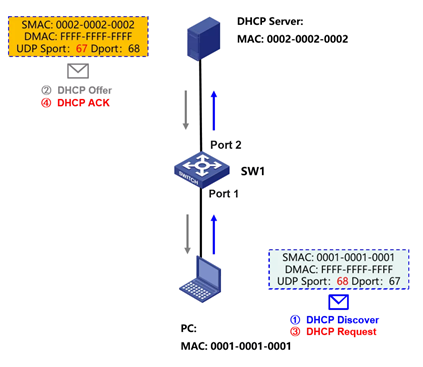
When a host obtains an address over DHCP, it first sends a Discovery message. The server receives it, allocates an address and answers with an Offer message; the host then sends a Request message to confirm, and the server finally replies with an ACK.
All DHCP messages are UDP messages. The client sends from UDP source port 68 (bootpc), while the server sends DHCP messages from UDP source port 67 (bootps), so the packets can be matched by source MAC address and UDP port number.
In the example below, ACL 3010 matches the DHCP messages sent by clients and ACL 3011 matches the DHCP messages sent by the server. The traffic class then matches both the ACL and the source MAC address of the packet.
Configuration Steps
Step 1: Define an ACL that matches traffic in one direction
acl advanced 3010 // an ACL that matches the DHCP messages sent by the client
rule 0 permit udp source-port eq bootpc destination-port eq bootps
acl advanced 3011 // an ACL that matches the DHCP messages sent by the server
rule 0 permit udp source-port eq bootps destination-port eq bootpc
Step 2: Define a class that matches ACL 3010 and the client source MAC, then configure accounting and the QoS policy
traffic classifier dhcp-c operator and
if-match acl 3010
if-match source-mac 0001-0001-0001
traffic behavior dhcp-c
accounting packet
qos policy dhcp-c
classifier dhcp-c behavior dhcp-c
Step 3: Define a class that matches ACL 3011 and the server source MAC, then configure accounting and the QoS policy
traffic classifier dhcp-s operator and
if-match acl 3011
if-match source-mac 0002-0002-0002
traffic behavior dhcp-s
accounting packet
qos policy dhcp-s
classifier dhcp-s behavior dhcp-s
Step 4: Apply the QoS policy to the right interfaces and directions
interface GigabitEthernet 1/0/1
qos apply policy dhcp-c inbound
qos apply policy dhcp-s outbound
interface GigabitEthernet 1/0/2
qos apply policy dhcp-s inbound
qos apply policy dhcp-c outbound
Step 5: Reset interface counters and obtain the IP address again
<H3C>reset counters interface
Step 6: View Traffic Qos results with the command: display qos policy interface inbound/outbound
<H3C>display qos policy interface inbound
Interface: GigabitEthernet1/0/1
Direction: Inbound
<H3C>display qos policy interface outbound
Interface: GigabitEthernet1/0/2
Direction: Outbound
Key Configuration
Need to pay attention to where the traffic is going.